
How to use Vina Cash Back
Everything you need to use Vina Cash Back end to end: earn and redeem credits, book services, handle invoices, run a merchant account, manage staff and get support.
Works on any device — desktop, tablet and mobile browser. No app required.
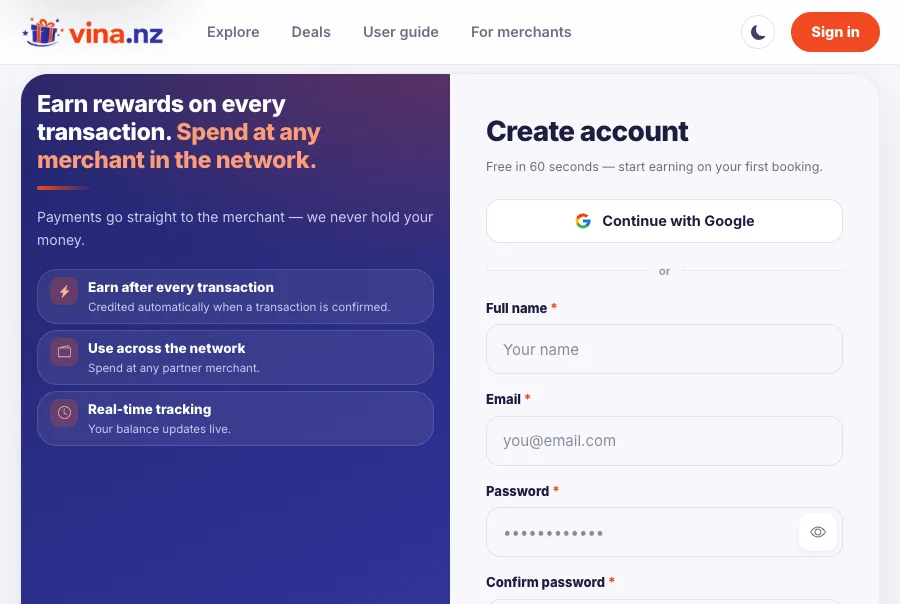
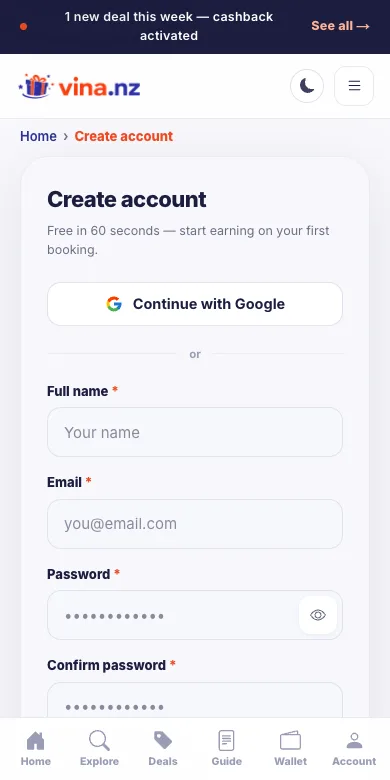
Create your account
One free account covers everything: browsing, booking, invoices and your cashback wallet.
- 1
Open the sign-up page
Choose Sign in in the top navigation, then Create an account. Continue with Google works too.
- 2
Fill in your details
Enter your name, email and a password, then accept the Terms and Privacy Policy.
- 3
Confirm your email
We email you a verification code. Enter it once and your account is ready to book and earn.
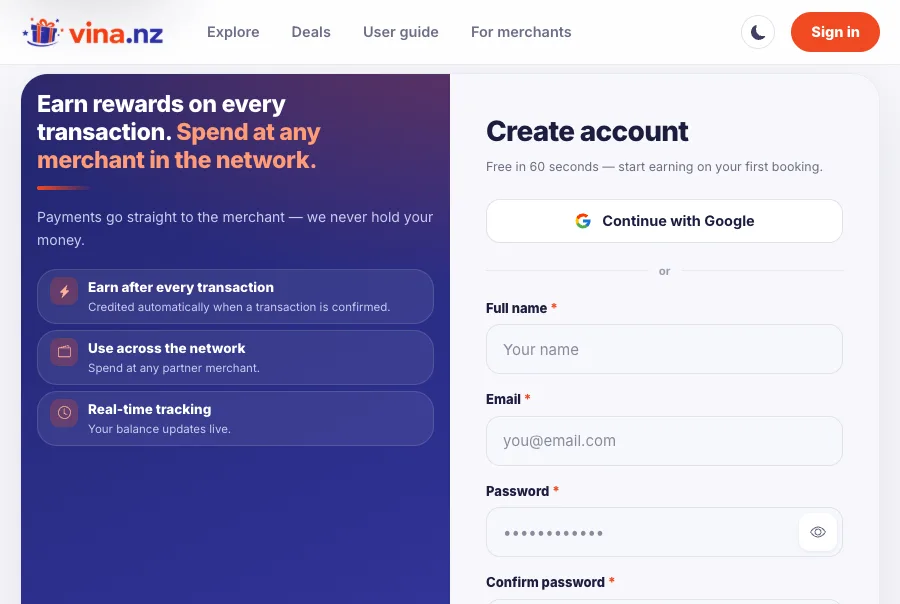
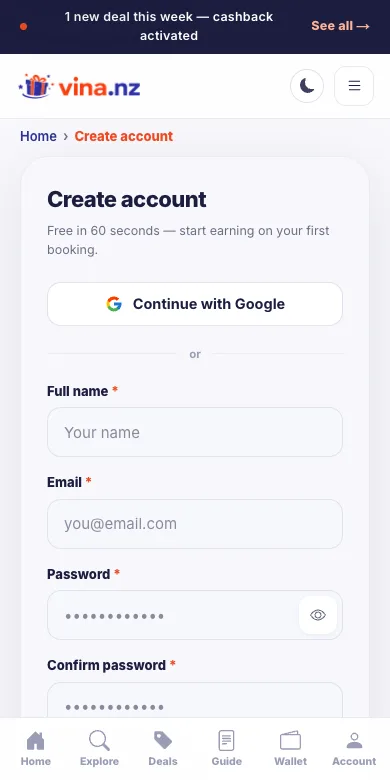
You do not need a merchant account to earn — every customer account collects cashback.
Sign-up is one screen on a phone, so a password manager can fill it in a single tap.
Sign in
Sign in to book services, confirm bills and spend the credits in your wallet.
- 1
Choose Sign in
The Sign in button sits in the top navigation on every page.
- 2
Enter your email and password
Use the email you registered with, or continue with Google if that is how you signed up.
- 3
Locked out?
Forgot password? emails you a one-time code, then lets you set a new password on the spot.
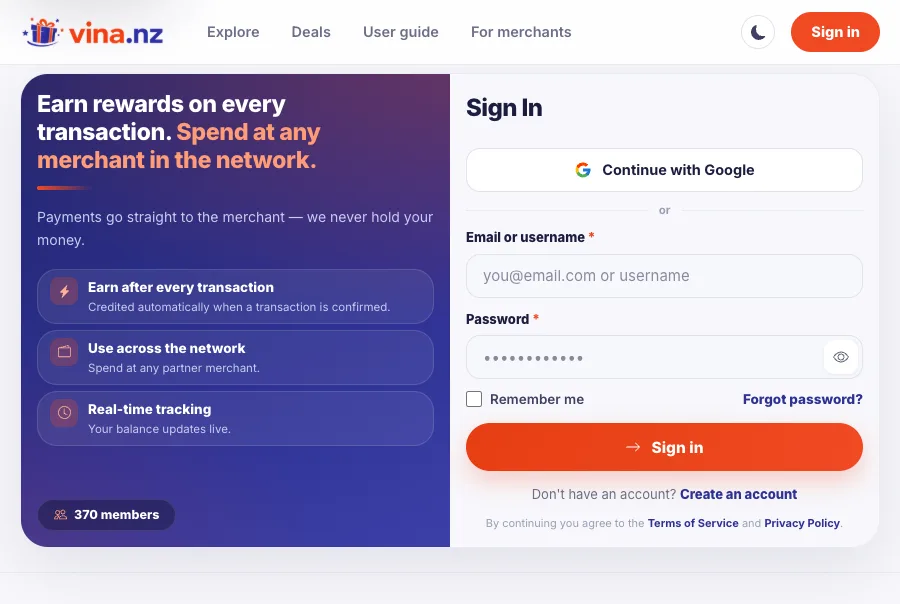
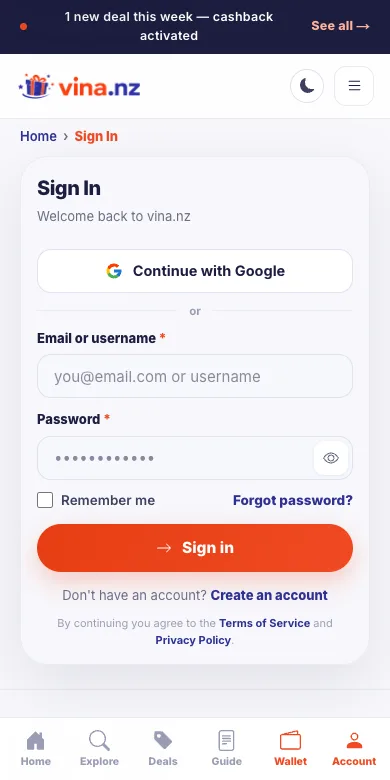
Too many wrong passwords locks the account for a short while — that is the account protecting itself, not a bug.
Sign in once in your phone browser, then add vina.nz to the home screen for app-like access.
Find a place to spend
Explore lists every service in the network with the cashback rate on the card, before you commit.
- 1
Open Explore
Search by service, merchant or location, narrow by city, and sort by Featured, Most cashback or Name.
- 2
Filter by category
The chips under the search bar switch between Restaurant, House, Car, Beauty, Visa and the rest.
- 3
Open a merchant
The merchant page shows photos, the menu, opening hours, the map, reviews and today's deals.
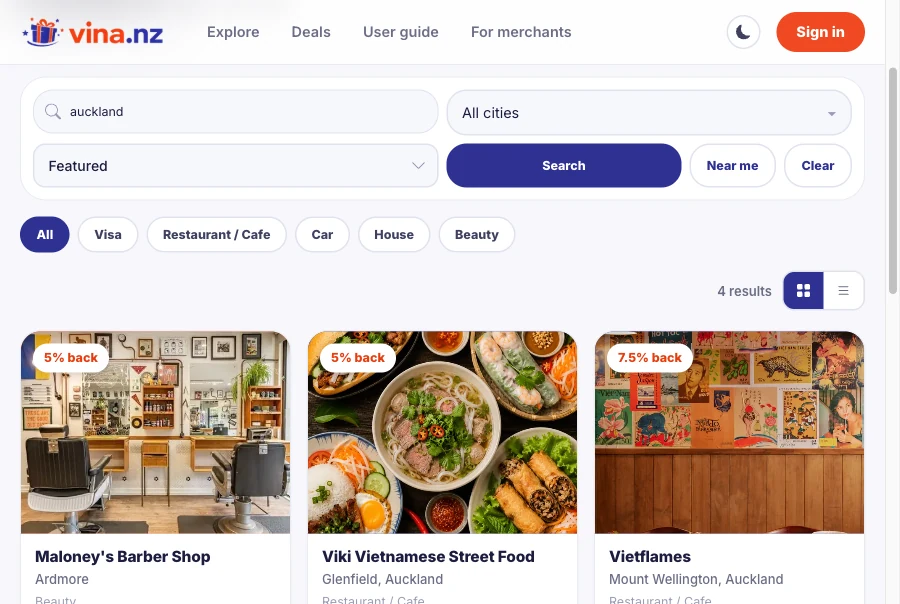
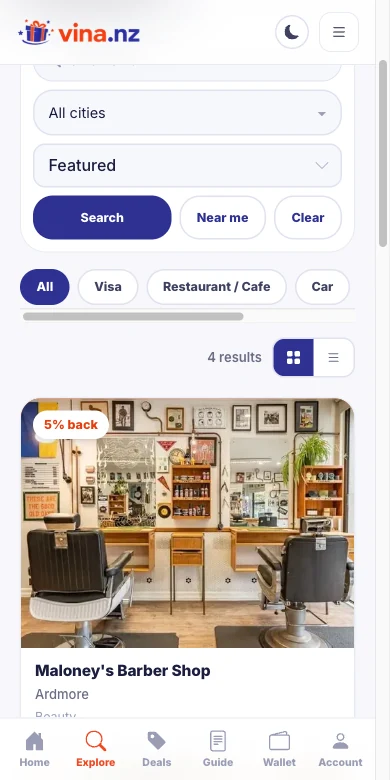
The percentage on each card is what lands in your wallet after the visit is confirmed.
The result grid becomes one card per row on a phone, and the search bar stays within thumb reach.
Hot deals and happy hours
Deals collects every live promotion in the network — a discount today, or a boosted window on set days.
- 1
Open Deals
Hot deals and Happy hours sit side by side, each showing which merchant is running it and until when.
- 2
Read the terms
A hot deal shows the old and new price, or is a special offer where the venue quotes on the spot.
- 3
Apply it when you book
Pick the deal in the booking form — the merchant sees it on the request and prices your invoice accordingly.
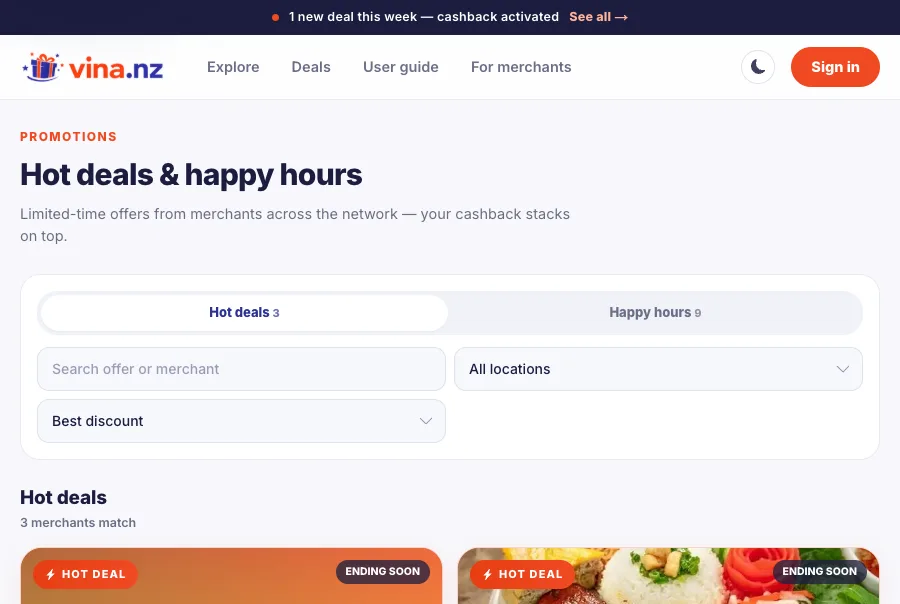
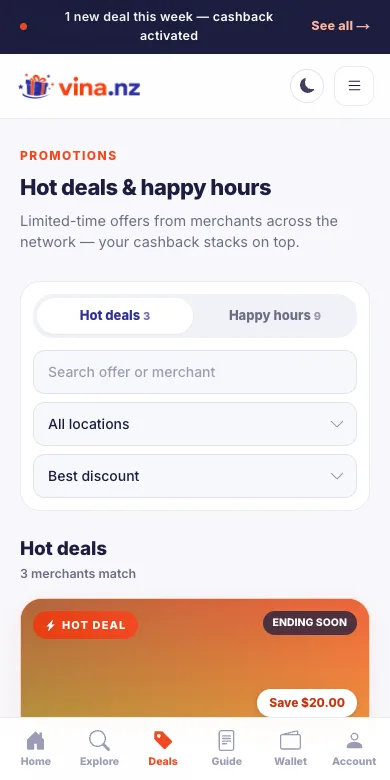
A merchant's own page also lists their live deals, so you can compare before booking.
Deals are the fastest way to find something nearby right now — the list leads with what is live today.
Book a service
Booking reserves your slot with the merchant. Nothing is charged at this point.
- 1
Choose Book now
The panel on the merchant page opens the booking form. Days the shop is closed are greyed out.
- 2
Pick a time and party size
Slots follow the merchant's opening hours. Add a note if there is anything they should know.
- 3
Send the request
The merchant confirms it and you are notified. Your cashback rate is locked in at booking time.
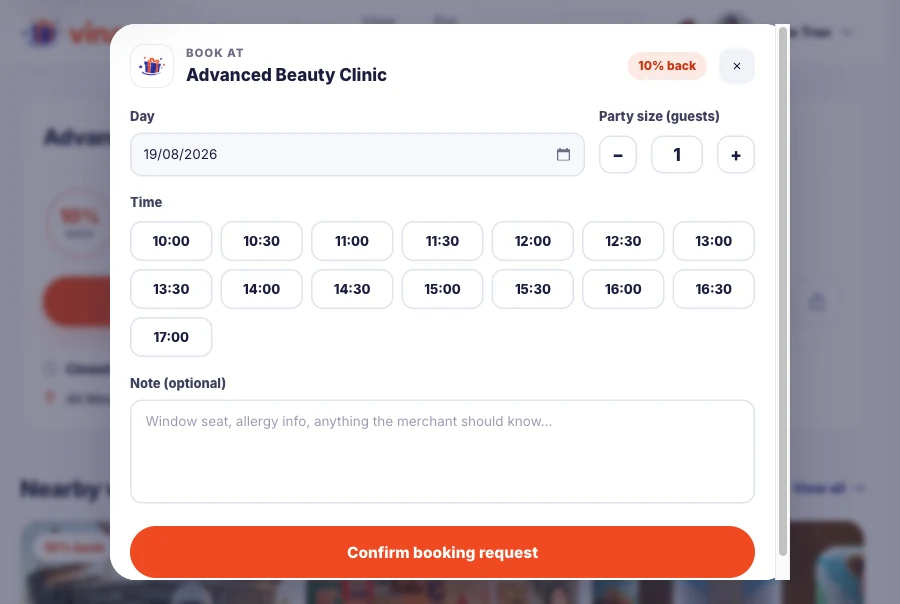
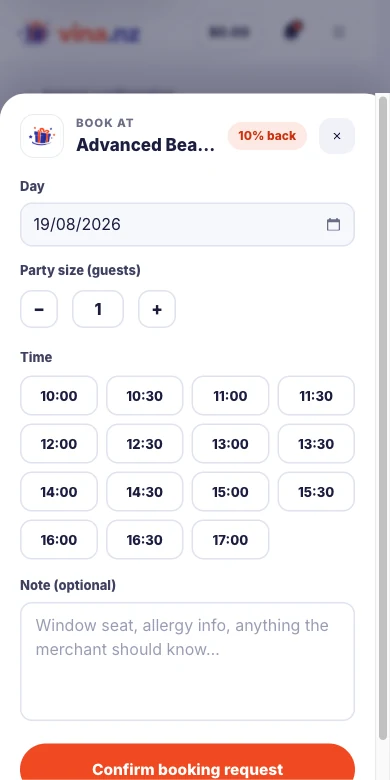
Menu lines are there to show what the venue offers — you reserve a slot, not an individual dish.
The booking form is a bottom sheet on a phone; the day and party size share the first row so nothing is buried.
Confirm your bill
After the visit the merchant raises an invoice. You review it, decide how much wallet balance to spend, and confirm.
- 1
Open the bill
My bills lists everything awaiting you, and the notification bell links straight to the newest one.
- 2
Choose how much to redeem
The slider spends your wallet balance against this bill; the cash left to pay updates as you move it.
- 3
Confirm, or reject
Confirm and pay the rest at the counter — or by card when the venue accepts cards. If something is wrong, reject it and the merchant can correct and resend.
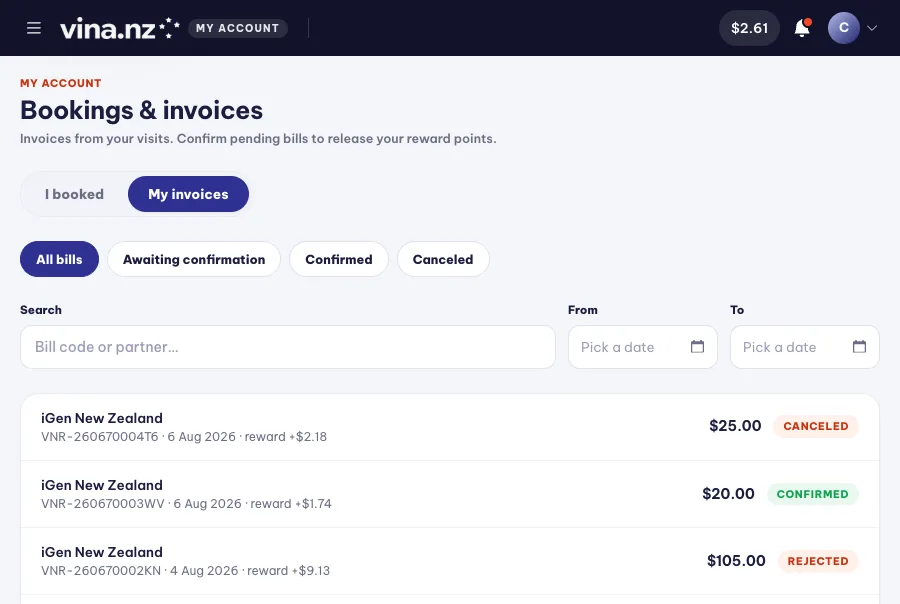
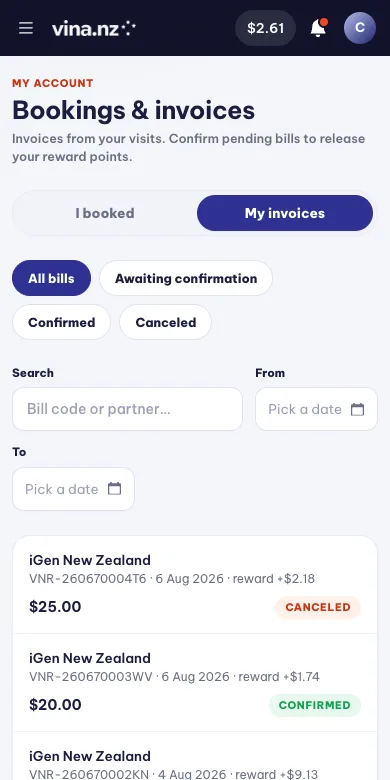
Cash bills wait for the merchant to confirm they received the money; your reward is released at that moment.
Reject before you confirm, not after — nothing moves in your wallet until you confirm.
Pay by card
Card payment is optional and depends on the venue. Paying at the counter is always available.
- 1
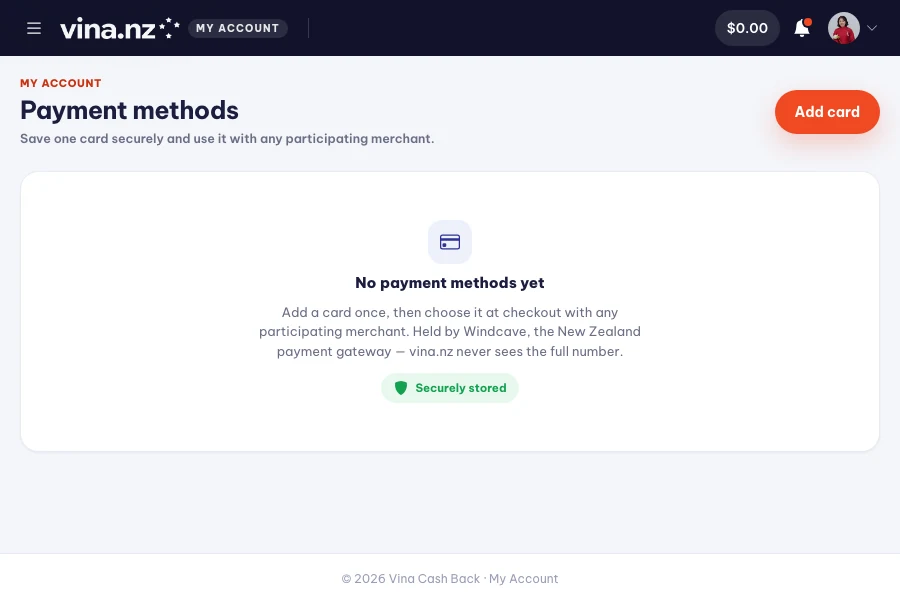
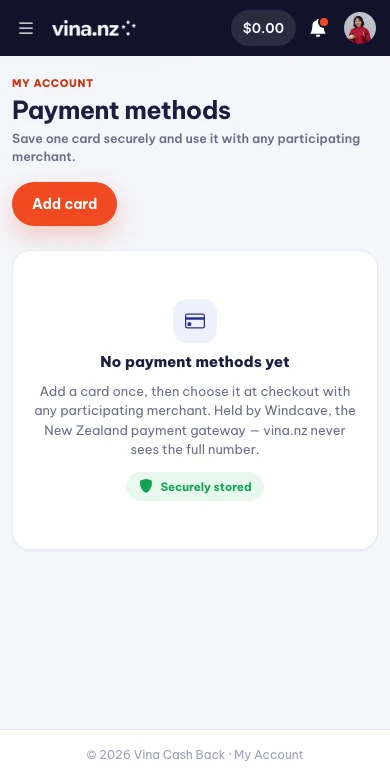
Save a card
Settings → Payment methods stores your card with Windcave, the New Zealand payment gateway that processes the payment. The card details go straight to Windcave — vina.nz never receives or stores the full number.
- 2
Pay from the bill
When the venue accepts cards, the bill screen leads with Pay by card and charges the amount left after your wallet.
- 3
No card button?
That venue has not switched card payments on. Confirm the bill and pay at the counter as usual — the reward is the same.
Rejecting a bill releases anything reserved from your wallet immediately.
The card form is Windcave's own, so it behaves the same on every phone.
How cashback is earned
Every confirmed invoice pays a percentage of what you spent back into your wallet.
- 1
The rate is on the card
Each merchant sets their own percentage, shown on their listing and locked in when you book.
- 2
Confirmation releases it
A card bill releases on payment; a cash bill releases when the merchant confirms they received the money.
- 3
Spend it anywhere in the network
Credits are not tied to the shop that paid them — redeem them on any bill from any participating merchant.
Referrals pay too: inviting a friend or a merchant earns commission on top of your own cashback.
The bell tells you the moment a reward lands, with a pop-up on the screen you are already on.
Read your wallet
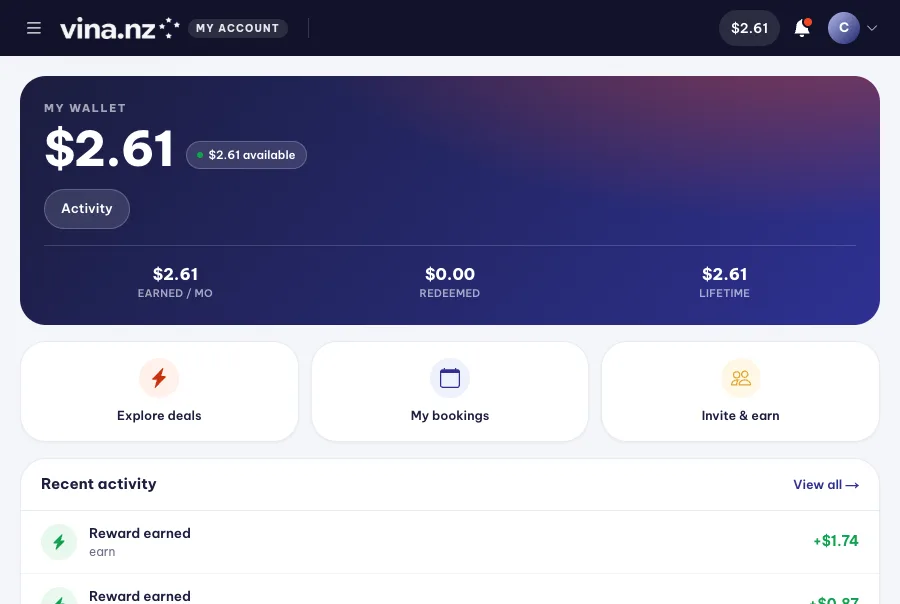
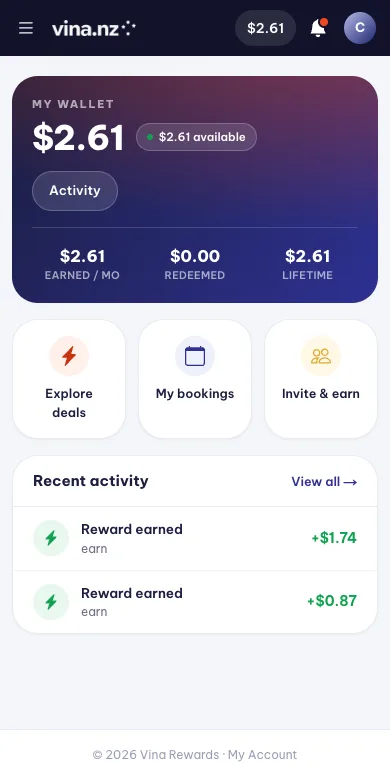
The wallet shows the balance, what the period earned and spent, and one row per invoice behind it.
- 1
Check the balance
Available is what you can spend right now. The tiles below scope earned, spent and Cash Back to the chosen period.
- 2
Read the table
Each row is one invoice: date, merchant, invoice total, what the wallet paid, the rate, the reward and your balance after it.
- 3
Open a row for detail
Tap a row to see the individual wallet movements behind it. The chips filter to cashback, commission, top-ups or adjustments.
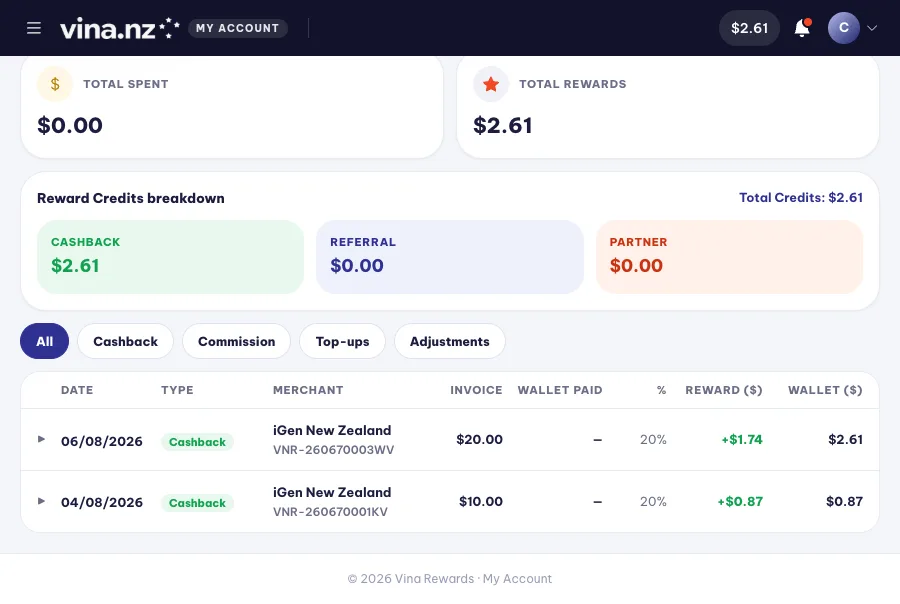
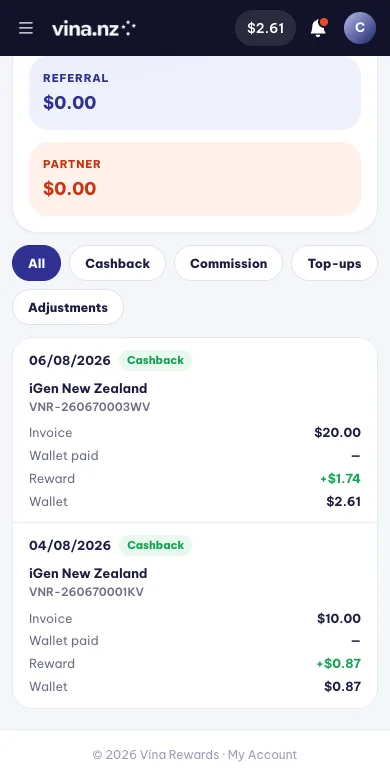
Commission from referrals has its own screen under My commissions.
On a phone each row becomes a card with the same numbers, so nothing runs off the edge.
Invite friends and merchants
Your invite link pays you commission on what the people you bring in spend.
- 1
Copy your link
Invite friends gives you a personal link and QR code to share.
- 2
They join and spend
Anyone who signs up through your link is tied to you, and their confirmed invoices earn you commission.
- 3
Know a business?
Join as sales partner turns the same idea into merchant referrals, with its own portfolio and commission screens.
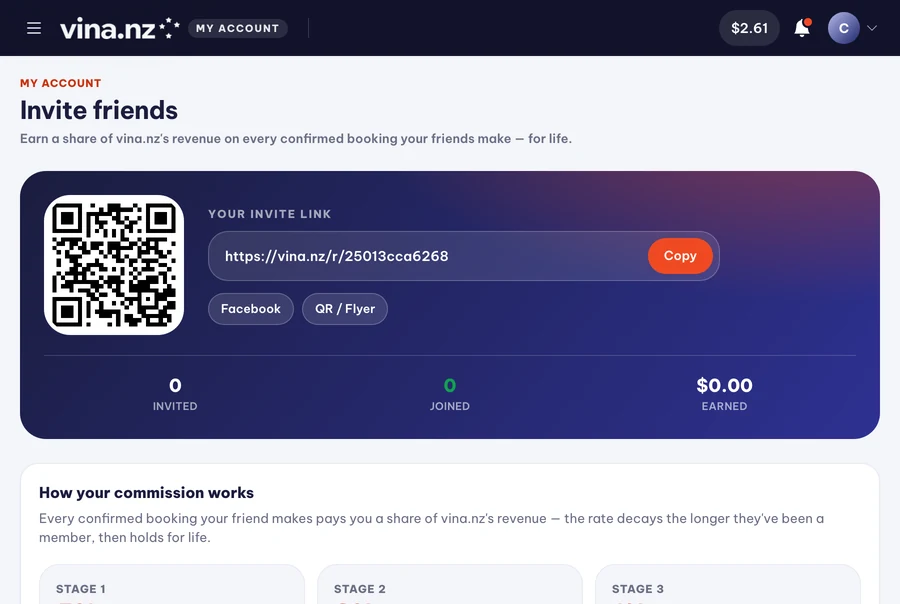
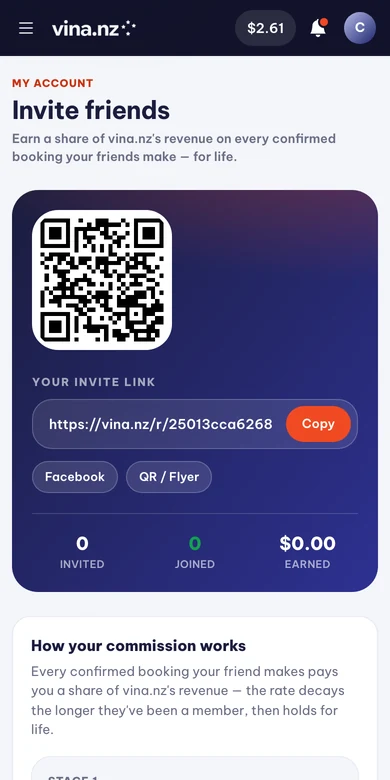
Commission is paid into the same wallet as your cashback, and listed separately under My commissions.
Share the link straight from your phone — the QR code is made for showing across a table.
When something goes wrong
Report a problem creates a record support can act on, with the booking or invoice attached.
- 1
Try the normal action first
A wrong invoice should be rejected, and a booking you cannot make should be cancelled — both are one click and need no support.
- 2
Raise a problem
Report a problem takes the type, a description and the related booking or invoice.
- 3
Follow the outcome
You are notified when it is resolved or rejected, and the whole thread stays on the case.
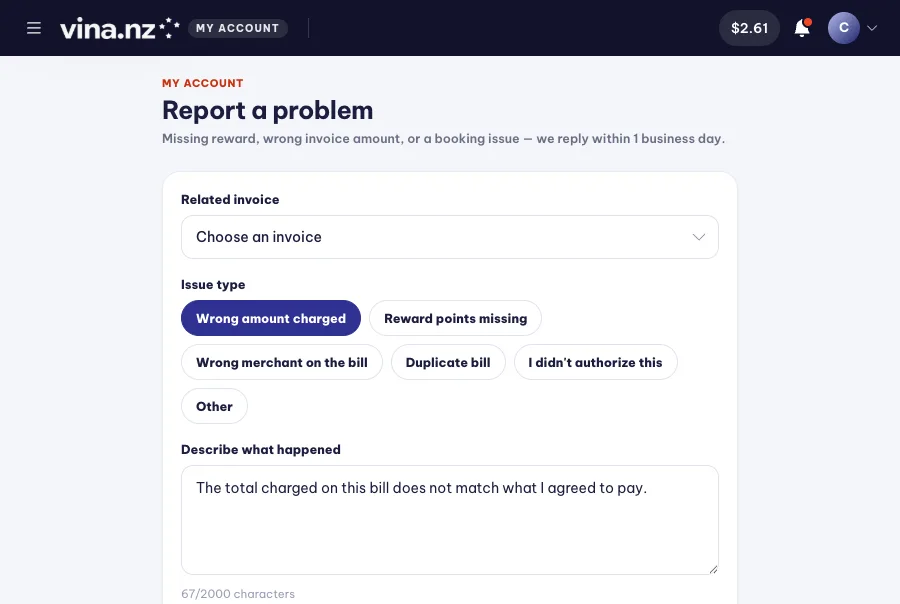
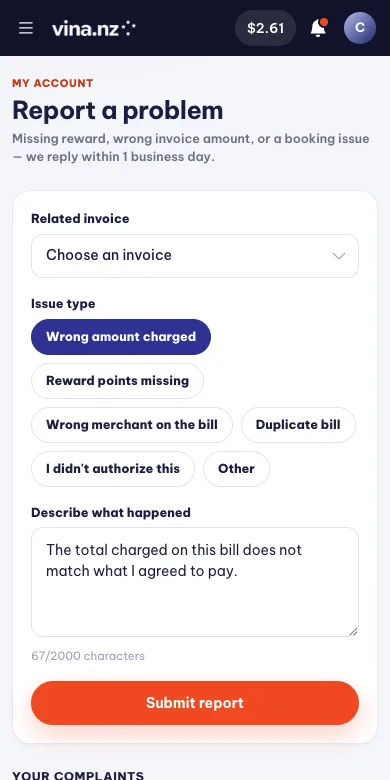
Attach the invoice code — it is the fastest way for support to find the exact record.
The notification bell carries the resolution, so you do not have to keep checking back.
Register your business
A merchant account sits on top of your normal account — you keep earning as a customer too.
- 1
Start from Become a merchant
The link is in your account menu, and on the For merchants page.
- 2
Describe the business
Business name, category, contact details, address and your logo — this is what customers see on your page.
- 3
Wait for approval
VinaNZ reviews the registration. You are notified when the account is activated.
The logo you upload is the face of your shop on the booking form and in search results.
Registration works in a phone browser, but the address and photos are easier on a larger screen.
Go live on Cash Back
A merchant becomes visible once one service is published with a cashback rate.
- 1
Add your service
Listed services holds what customers can book. Give it a name, price, category and photos.
- 2
Set the cashback rate
The rate you choose is what customers see and what your wallet funds on every confirmed invoice.
- 3
Publish it
Publishing puts your page live in Explore. Working hours decide which days and times can be booked.
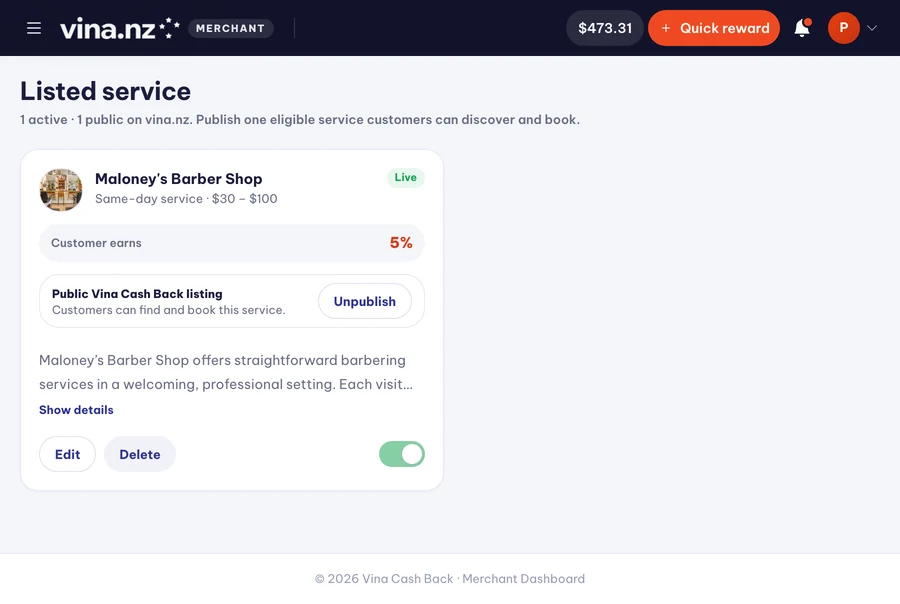
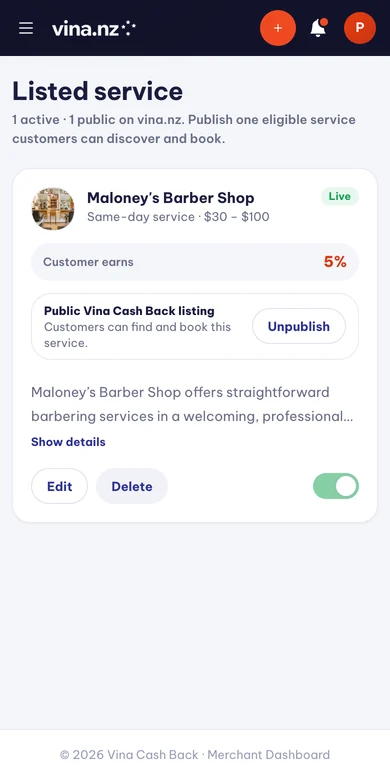
One service is published at a time — it is the one customers book and the one that carries your rate.
Photos lift bookings noticeably: upload bright, sharp images of the real place.
Read your dashboard
Overview is the daily picture: today's bookings, invoices awaiting action and where the wallet sits.
- 1
Check what needs you
Bookings to confirm and invoices awaiting cash confirmation are the two queues that hold up customers.
- 2
Watch the wallet pill
The balance in the top bar funds Cash Back and commission. It updates as you move around the dashboard.
- 3
Use the bell
New bookings and bills raise a notification, and a pop-up appears on whichever screen you are on.
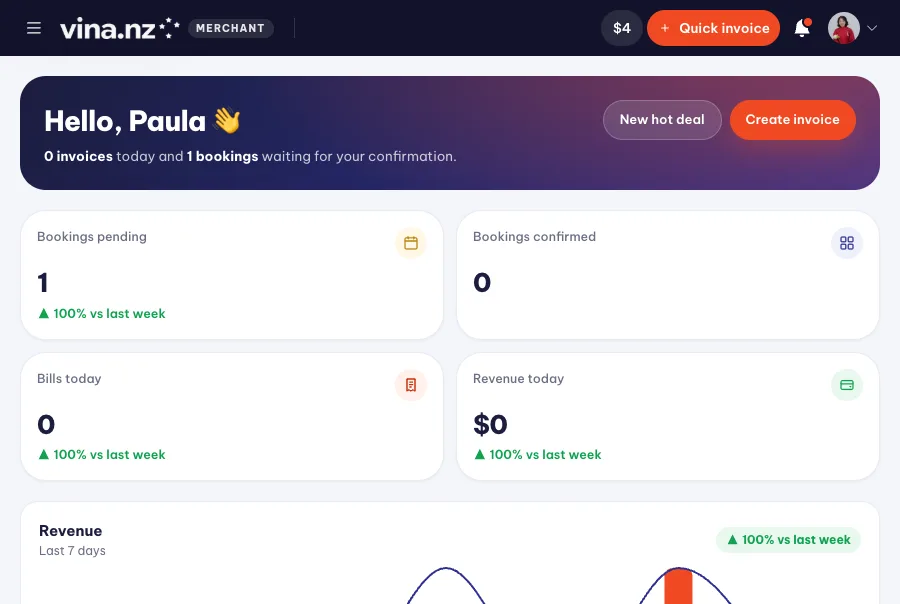
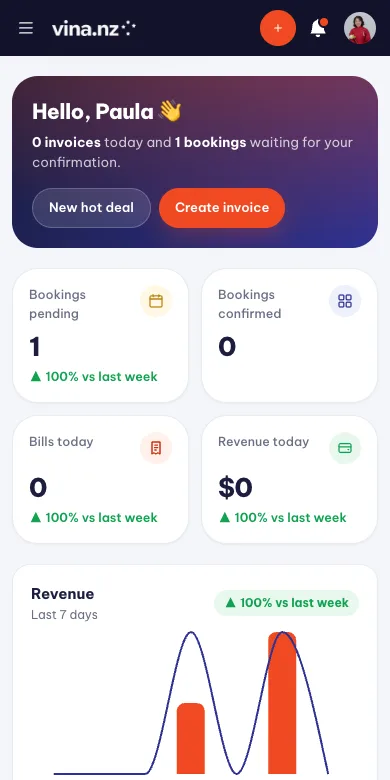
Clicking a notification opens the exact booking or invoice it is about.
The dashboard adds a bottom bar on phones, with the tools your role is allowed to use.
Keep your page accurate
Your public page is built from what you enter here, so it is worth a few minutes.
- 1
Team & location
Address, map pin, contact details and the people customers will meet.
- 2
Working hours
Closed days are greyed out in the customer's booking form, so nobody books a day you are shut.
- 3
Menu
Menu lines show what you offer, with prices. They are for reading — customers reserve a slot, not a dish.
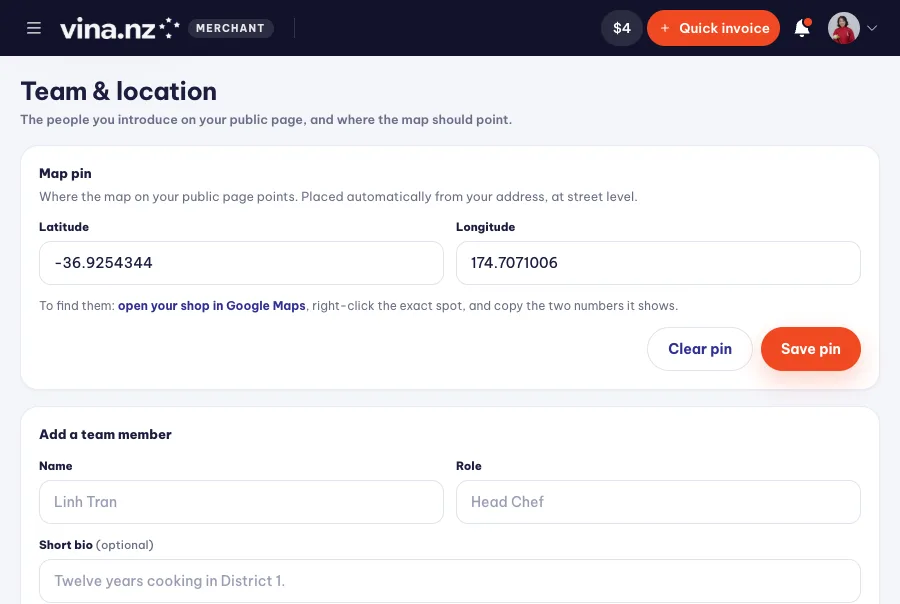
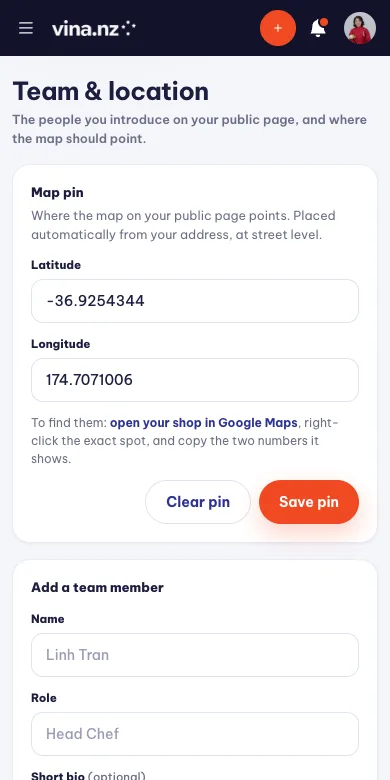
An accurate map pin matters more than the written address — that is what customers navigate to.
Photos and the logo upload straight from your phone's camera roll.
Services and menu
Listed services is what gets booked; Menu is what gets read.
- 1
Edit the listed service
Price, duration, category and photos. Changing the cashback rate changes what new bookings lock in.
- 2
Build the menu
Group menu lines by category, each with its own price, description and photo.
- 3
Keep prices current
The menu is the first thing customers read on your page — an out-of-date price costs you the booking.
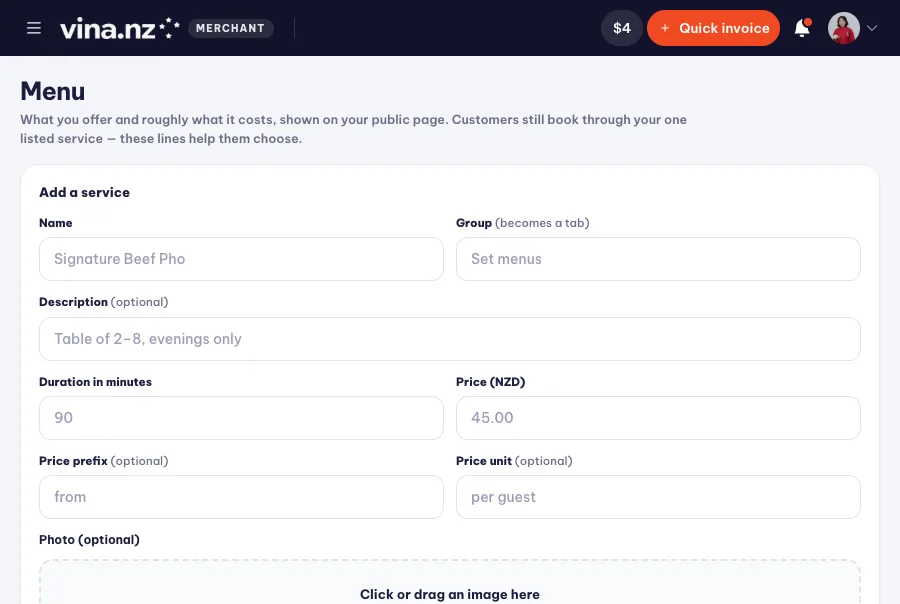
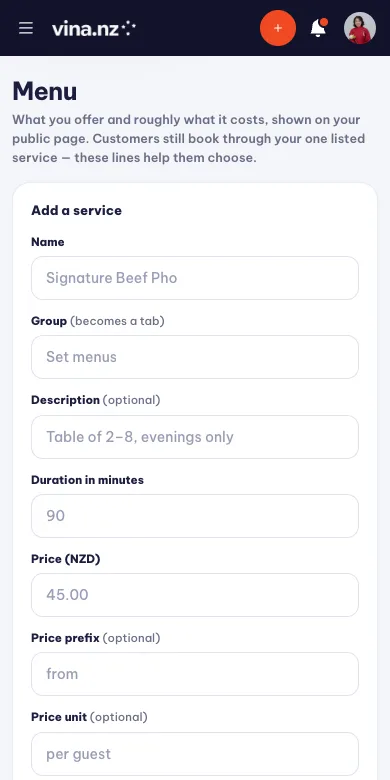
Ask the venue is a valid price: leave the price empty and customers know to ask.
Menu edits save one line at a time, so you can fix a price between customers.
Run deals and happy hours
Deals put you in the network-wide Deals feed and on your own page.
- 1
Create a hot deal
A discount with an old and new price, or a special offer with no price. Add a cover photo and the dates it runs.
- 2
Set a happy hour
A percentage off during set hours on chosen weekdays — useful for filling quiet windows.
- 3
Watch the dates
Deals cannot start in the past; past dates are greyed out in the date picker.
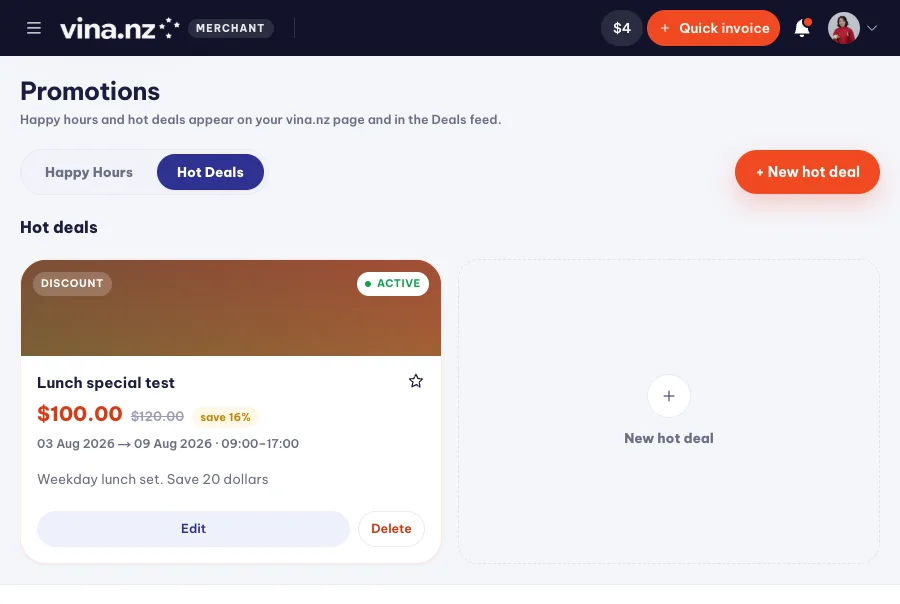
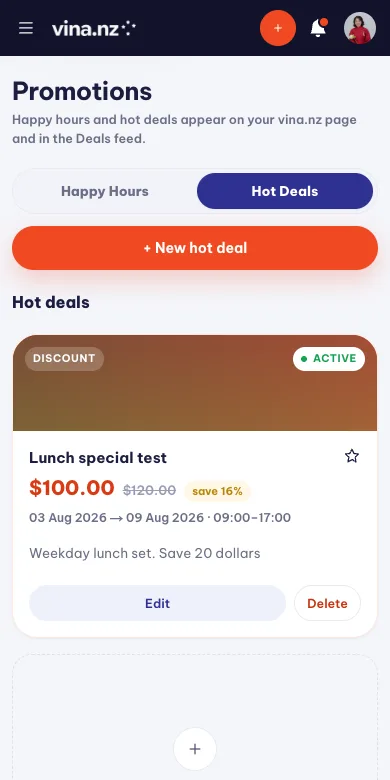
One deal can be featured, and that is the one that leads your page.
The cover photo is what customers see in the Deals feed — use a real photo, not a poster.
Handle bookings
A booking is a request until you confirm it, and the customer is notified at every step.
- 1
Confirm or decline
Confirm the slot, or cancel with a reason the customer will read.
- 2
Mark it complete
After the visit, complete the booking — from there you can raise the invoice in one step.
- 3
Check in on the day
Today's bookings are listed together so the counter can see who is expected.
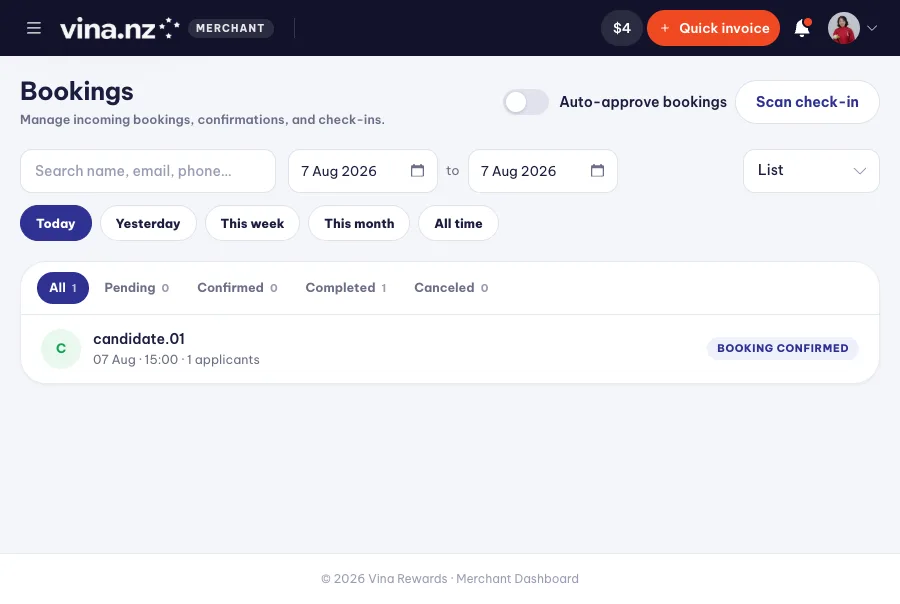
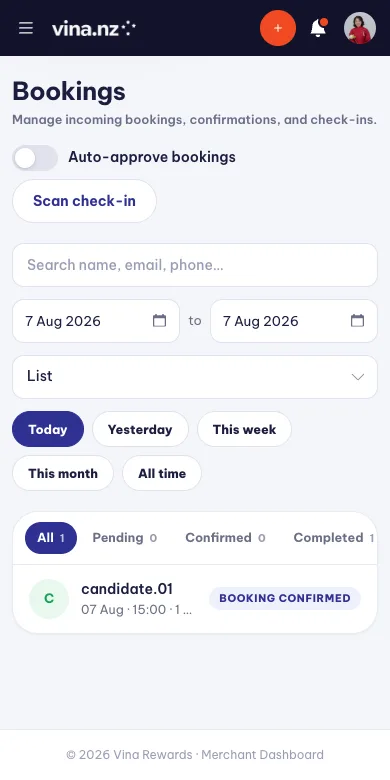
Cancelling with a clear reason avoids a complaint later — the customer sees exactly what you wrote.
Bookings are the screen most used at the counter, so it stays usable one-handed.
Raise and settle invoices
The invoice is what releases the customer's reward — and what your wallet pays commission on.
- 1
Create the invoice
Quick invoice identifies the customer by today's booking, phone or email, then takes the amount and the payment method.
- 2
The customer confirms
They review it, decide how much wallet balance to spend, and confirm. You cannot confirm on their behalf.
- 3
Confirm you were paid
For cash, Mark cash received once the money is in your hand. That releases the reward and closes the invoice.
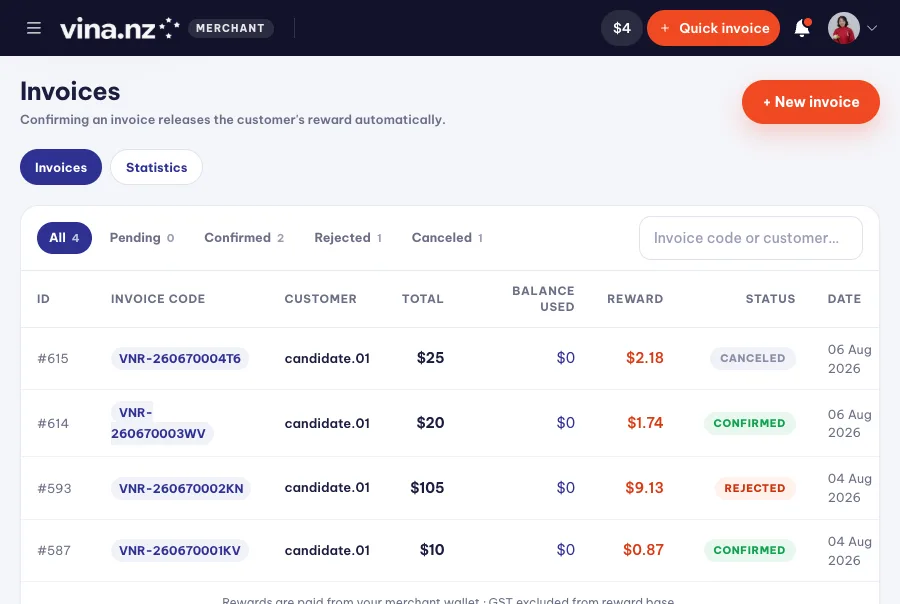
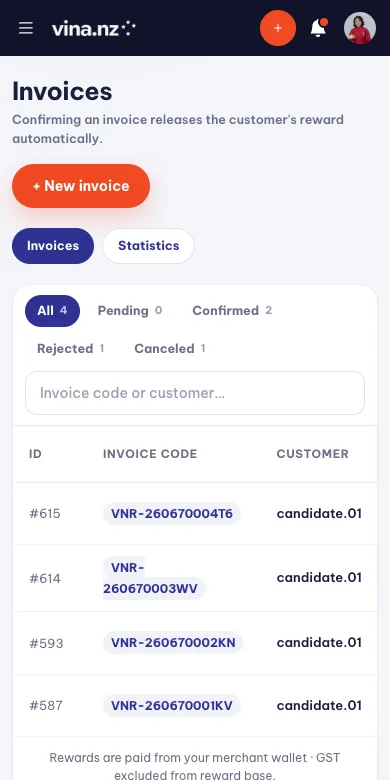
Card is selectable only when your business accepts card payments — otherwise the customer sees no card button and pays cash.
The invoice drawer shows the full split: GST, commission, customer reward and what you keep.
Get paid
Cash stays with you at the counter. Card money is collected by VinaNZ and transferred to your bank.
- 1
Add your payout bank account
Payments & payouts stores the NZ account VinaNZ transfers to. Card payments cannot be switched on without it.
- 2
Turn on card payments
Settings → Accept online card payments makes Card selectable on new invoices and shows the card button to customers.
- 3
Withdraw your balance
Request a withdrawal from Payments & payouts. VinaNZ makes the bank transfer and the request is marked paid.
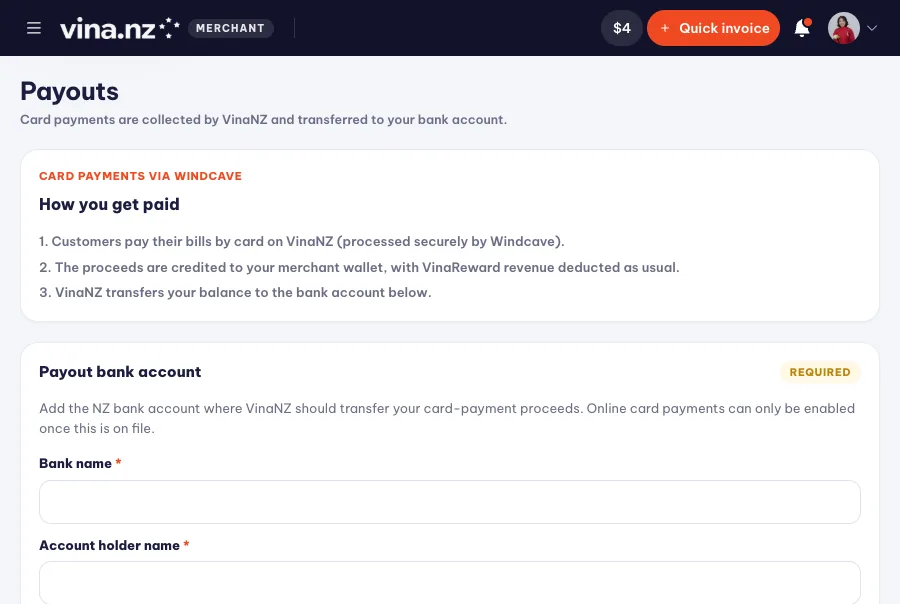
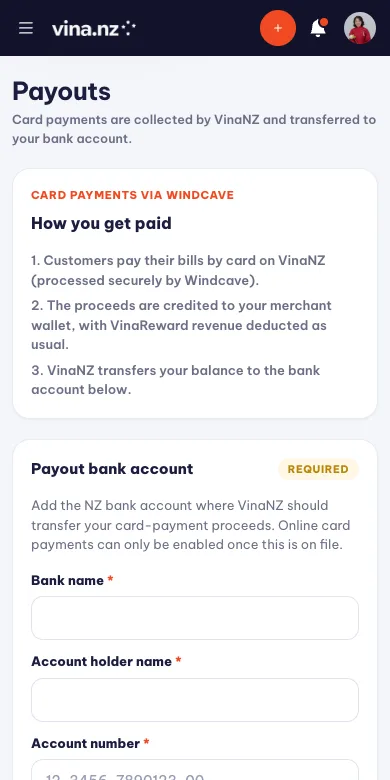
Card proceeds are credited to your merchant wallet, with the reward and commission taken out of it — the rest is yours to withdraw.
Bank details are worth entering carefully on a larger screen; the withdrawal itself is one tap.
Fund your wallet
The merchant wallet pays the customer's reward and VinaNZ's commission on every invoice you confirm.
- 1
Keep it topped up
Top up wallet adds funds. Auto top-up keeps a saved card on file so the wallet never blocks an invoice.
- 2
Read the ledger
Wallet history shows every invoice and movement, filtered by type and by how the customer paid.
- 3
Reconcile weekly
Reconciliation is the statement of what VinaNZ owes you and what you owe VinaNZ. Confirm it or dispute it in place.
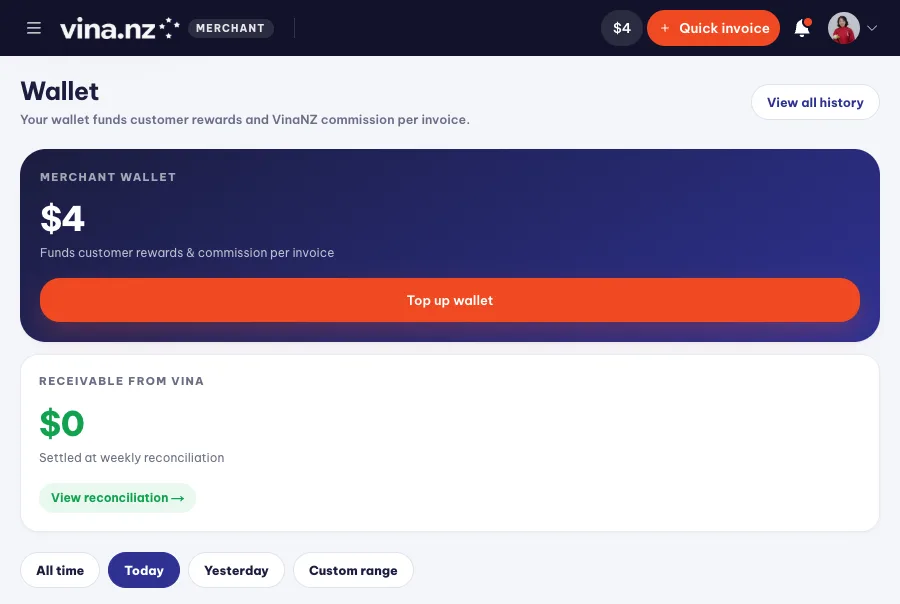
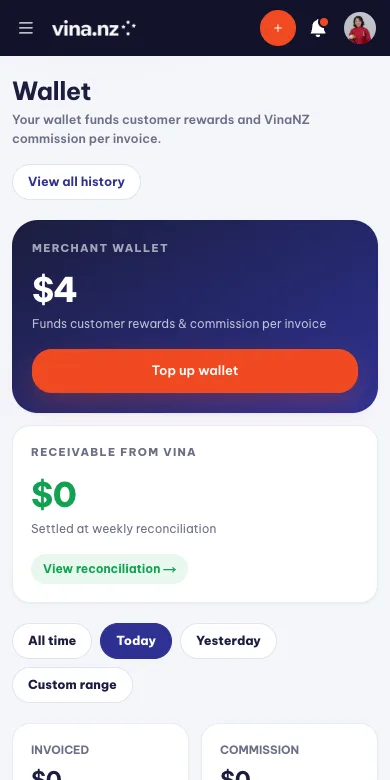
A wallet in debt past the limit blocks new invoices — top up before it gets there.
The balance in the top bar is the same figure as the wallet card, and refreshes as you move around.
Add your team
Staff can run the counter without seeing your money.
- 1
Send an invite
Staff takes their email and the permissions they get — bookings, invoices, services, hours.
- 2
They accept
The invite link asks them to sign in or register, then adds the merchant portal to their account immediately.
- 3
Money stays with the owner
Wallet, payouts, settings and staff management are owner-only, whatever permissions a staff member holds.
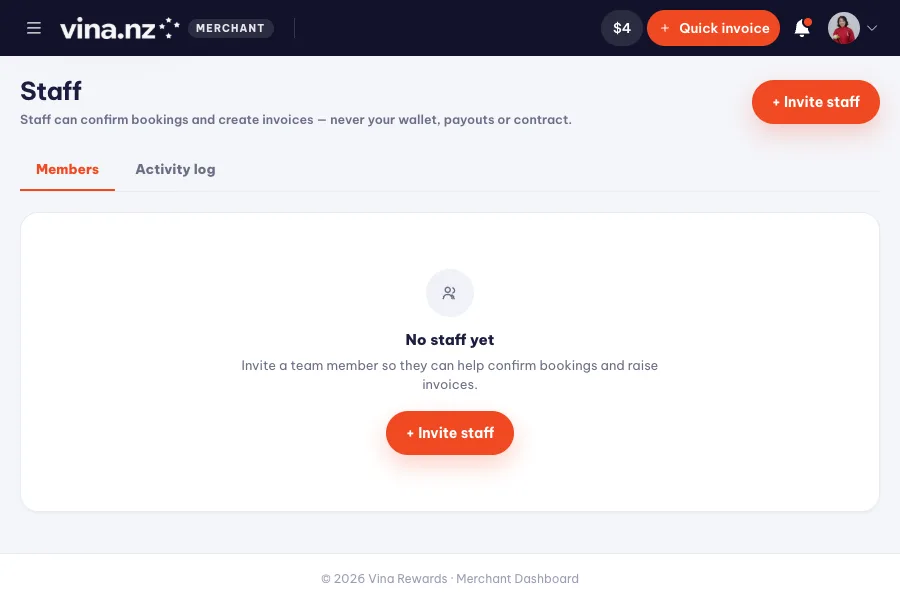
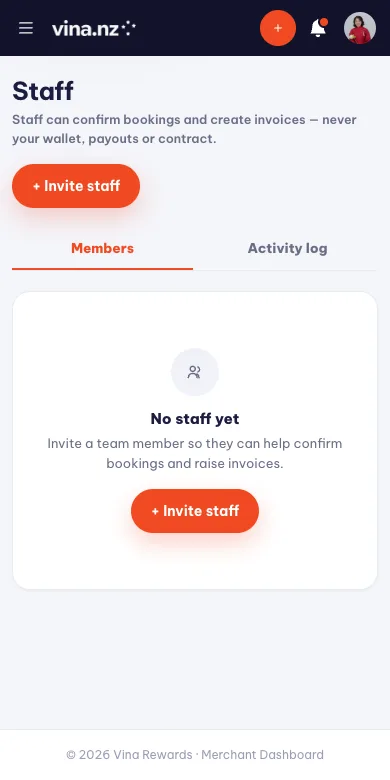
Activity log records who confirmed which booking or invoice.
Staff can work entirely from a phone — the bottom bar shows only what their permissions allow.
Complaints and reviews
Both are public records of how you handle a problem, so they are worth answering.
- 1
Read the complaint
A complaint carries the booking or invoice it is about, so you can see the exact case.
- 2
Fix what you can directly
A wrong invoice can be edited and resent while it is still pending — that usually ends the matter.
- 3
Answer reviews
Reviews show on your public page. A short, factual reply reads better than none.
Complaints support cannot resolve locally are escalated with the whole record attached.
You are notified when a complaint or review arrives, so nothing sits unanswered for days.
Sales partners and referrals
Merchants can be introduced by a sales partner, who earns commission on what that merchant generates.
- 1
Invite a merchant
Sales partners have their own link and registration form for bringing a business onto the platform.
- 2
Track the portfolio
The Partner screens list the merchants tied to that partner, with the revenue behind each one.
- 3
Commission is paid to the wallet
Released commission lands in the same wallet as cashback, and is listed under My commissions.
One account can be a customer, a merchant and a sales partner — switch portals from the account menu.
The portal switcher is in your account menu, so you never have to sign out to change hats.
What VinaNZ handles
Some work is deliberately back-office, so your screens stay simple.
- 1
Account lifecycle
Approval, contracts, sales assignment and offboarding are handled by VinaNZ.
- 2
Money and audit
Ledgers, refunds, payout approval and partner debt are reviewed with their own controls and audit trail.
- 3
Risk and support
Fraud flags and escalated complaints are reviewed centrally; you receive the outcome as a notification.
If a case cannot be solved with reject, cancel or edit, it belongs with support.
Outcomes arrive as notifications, so back-office review needs nothing from your phone.
Using Cash Back on your phone
Vina Cash Back is built mobile-first. Every page in this guide works in your phone browser — here is how to make it feel like an app.
No app needed
Browsing, booking, invoices and wallets all adapt to small screens — tables become cards, filters become drawers, buttons stay thumb-sized.
Add to Home Screen — iPhone & iPad
Open vina.nz in Safari, tap the Share button, then choose Add to Home Screen. Vina Cash Back launches full-screen from its own icon.
Add to Home Screen — Android
Open vina.nz in Chrome, tap the menu (⋮), then choose Add to Home screen. Confirm and the icon appears on your launcher.
Merchant bottom navigation
On mobile, the merchant dashboard adds a fixed bottom bar. Owners and staff see the tools their role can use, such as bookings, bills, wallet or more actions.
Frequently asked questions
When do my Reward Credits arrive?
A card payment releases them as soon as the charge succeeds. A cash bill releases them the moment the merchant confirms they received the money — you will see the row in your wallet straight away.
Do I need to download an app?
No. Vina Cash Back runs entirely in your browser on any device. For quicker access, add vina.nz to your phone's home screen — see the mobile section above.
What payment methods can I use?
Paying at the counter is always available, and you can spend wallet credits against any bill. Card payment appears only for merchants who have switched it on — if there is no card button, that venue takes cash.
Can I use my credits at a different merchant than where I earned them?
Yes. Reward Credits live in your wallet and can be redeemed at any participating merchant on the platform.
Can one account be both a customer and a merchant?
Yes. Every merchant also earns as a customer. Your dashboard separates the two sides so day-to-day use stays simple.
What if an invoice looks wrong?
Do not confirm it — use the Reject option and the merchant can correct and resend it. Nothing is charged until you confirm.
Why does my merchant dashboard ask for a saved card?
That card funds auto top-up. Your wallet pays the customer's reward and VinaNZ's commission on every invoice, so it must not run dry. Accepting card payments from customers is separate, and optional.
How does a merchant get card money out?
VinaNZ collects card payments and credits them to the merchant wallet, with the reward and commission deducted. Add a payout bank account under Payments & payouts, then request a withdrawal — VinaNZ transfers it to that account.
Why is my service not visible on Cash Back?
Check that the partner account is active, the service is published, its cashback rate is above zero, and the shop has working hours set — a shop with no open days cannot be booked.
Who can manage staff and sensitive merchant settings?
Owners keep sensitive controls such as wallet, payments, settings and staff management. Staff members can use only the permissions granted to them.
When should I create a complaint?
Create a complaint when a booking, invoice, payment, reward or merchant response cannot be solved by the normal reject, cancel or edit flow. Support can then review the full record.
Grow your business with Cash Back
Create your free account, then register your business from the dashboard.
Become a Merchant